
Search Docs by Keyword
VPN Setup
Preface
Many of the resources available through the FASRC cluster must be accessed through VPN (virtual private network – a sort of tunnel into the Harvard network) to protect sensitive data and prevent unauthorized access. When working outside the Harvard network, a VPN connection is generally necessary. This page describes the process for installing software and connecting to the RC VPN.
If you are just SSH’ing in to our login nodes, VPN is not required. But it is needed for many other services. Some (but not all) examples are:
- Mounting shared drives to your laptop/desktop
- Accessing Open OnDemand (former VDI)
- Accessing level 3 environments
- License server access
- Accessing Starfish https://starfish.rc.fas.harvard.edu/
Requirements
- You will need a FAS Research Computing (aka “FASRC”) account to connect to the FASRC VPN. If you do not have an FASRC account, please see How Do I Get a FAS Research Computing Account?
- Once you have an RC account, you will need to set your FASRC password and set up your two-factor authentication token (OpenAuth).
- You will need to install the Cisco AnyConnect client before proceeding. If you already have AnyConnect installed, and most Harvard users will, you do not need to install it again.
IMPORTANT NOTE: You need to add a VPN realm, typically @fasrc, after your username in order to log in to the FASRC VPN. The FASRC VPN (the client or web page) is the only place you do this. You will not use the username@fasrc format for login anywhere else but the FASRC VPN.
See example below.
VPN Software Installation
Install
NOTE: If you already have a current Cisco AnyConnect client installed for Harvard VPN access, you do not need to install it again. Skip to ‘Logging In’
Install from Harvad VPN page
IMPORTANT NOTE: The FASRC VPN page is currently experiencing an issue with authentication. You will not be able to log in there to get the client. For now we recommend the following method.
Visit the HUIT VPN instructions and install the client from vpn.harvard.edu
Installing the Cisco Secure Client (HUIT)
If you are an outside collaborator who does not have a Harvard Key, please contact FASRC for an alternate download method. Please let us know that you do not have Harvard Key, what your FASRC username is, and which lab/PI you are collaborating with.
Install from FASC VPN page
The Cisco AnyConnect client can be installed from our VPN portal: https://vpn.rc.fas.harvard.edu
If the automatic installation fails, you should then be offered an option to download an installer. After downloading the software, click on the executable to run the AnyConnect installation wizard.
If you are unable to install the client from this page, we recommend following instructions here: Installing the Cisco Secure Client (HUIT)
Logging in
Start Cisco AnyConnect and enter the FASRC VPN server name: vpn.rc.fas.harvard.edu

Enter your credentials and click OK to connect:
- USERNAME: When connecting to the VPN you will use your username + @ + VPN realm name. For most people, this will be
@fasrc(example:jharvard@fasrc). If you are in the NCF or another FASSE group, this will be@fasseor a realm provided to you by your PI/lab group. - PASSWORD: The password you will enter is your FASRC account password as noted above
- TWO-STEP VERIFICATION CODE: You enter your OpenAuth token code here
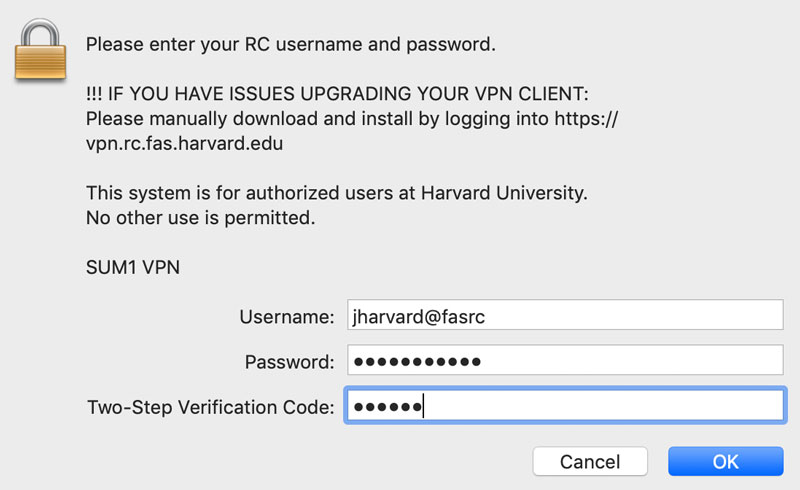
Note: If you entered a wrong password and are prompted to enter password and two-factor code again, wait for the two-factor code to refresh. Reusing the old code will result in error.
Once connected, you will have normal Internet and Harvard network access as well as access into the FASRC environment.