Search Results for: security policy

FASSE Cluster (FAS Secure Environment)

FASSE Cluster (FAS Secure Environment)

Overview

The FAS Secure Environment (FASSE) is a secure multi-tenant cluster environment to provide Harvard researchers access to a secure enclave for analysis of sensitive datasets with DUA‘s and IRB’s classified as Level 3. All servers in the FASSE environment are physically located inside an access-controlled data center. We have implemented security controls and access control lists to restrict access.

Access to the cluster is restricted via a Virtual Private Network (VPN) and only authorized users/groups will be added to the FASSE VPN realm. If you do not belong to a FASSE project group, you cannot access the FASSE VPN or cluster.

We provide different storage tiers based on project needs. Please review storage options. 

Note: As this is a secure environment, your home folder on FASSE is separate from any home folder you might have on the FASRC (Cannon) cluster. Data from the secure level 3 (FASSE) environment should not be transferred into level 2 space (Cannon).

FASSE is not rated for Level 4/DSL 4 data  If you require a Level 4 environment, please contact University RC (URC) to discuss options.
FASRC does not provide a Level 4 secure environment.

See also:


STEP 0: HRDSP REQUIREMENTS

In order to have a FASSE DSL3 environment created for a project, the project owner or PI must first satisfy the HRDSP application requirements. FASRC (or the HRDSP section here) is required by the university to review any documents (DUA/DAT/IRB) before a new FASSE project is created and/or any data is copied to the cluster. This information will also help FASRC determine how the environment should be set up, who the contacts are, and how project group names should be constructed.

FASRC cannot advise you on this step, please contact VPR for assistance and guidance.

HRDSP: Harvard Research Data Security Policy site
HRDSP: Applications Summary and Order of Reviews


Step 1: Sign up for a FASRC Account

If you do not already have a FASRC account (otherwise skip to Step 2):

PI/Project Owner

Users

Before you can access the FASSE cluster you need to request a Research Computing account, selecting your PI as your sponsor (in this case, this is a Harvard faculty PI [or in some cases, a non-faculty researcher with PI rights], not necessarily the person listed on an IRB or DUA). See How Do I Get a Research Computing Account for instructions if you do not yet have an account. If your Harvard PI does not exist, please direct them to this same page and the directions in the previous paragraph.

New Accounts

If you have an existing account or have already completed the following three steps, you can skip this section. But please note the FASSE VPN realm (@fasse) noted below. You must connect to this realm to access any FASSE resources.

Password Set

Once you have your FASRC account, you will receive an email with the same information as below, but step one is to set your password. This will be done using your email address and our password reset system.

See our Password Reset documentation for instructions.

OpenAuth (two-factor)

To access FASSE and most FASRC services, including the FASRC VPN, you will need your personal FASRC OpenAuth two-factor (2FA) token. This can be set up on your smartphone using an app or downloaded as a Java applet to run on your desktop/laptop.

See our OpenAuth documentation for setup instructions.

FASSE VPN

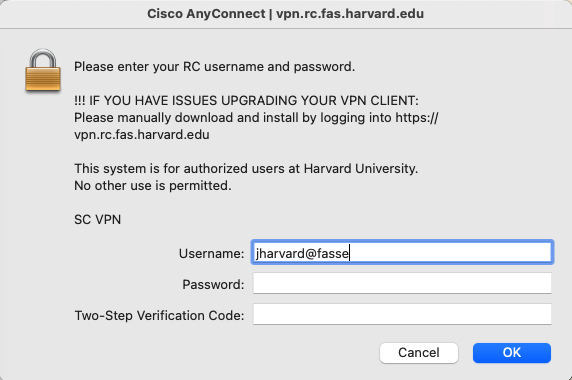
In order to access any secure system or environment in FASRC, you will need to connect to the FASRC VPN. The FASRC VPN is separate from other Harvard VPNs you may already be using.  To connect to a FASSE environment, you will connect to the FASRC VPN (vpn.rc.fas.harvard.edu) using the @fasse realm (ex. – jharvard@fasse), your FASRC password, and your OpenAuth 2FA code.

See our VPN documentation for setup instructions.


Step 2: Request a FASSE Project

If you have completed the HRDSP process and you and your PI have FASRC accounts, you can proceed to fill out the

FASSE New Project Request Form (Harvard Key login required)


USING FASSE

Accessing the FASSE environment.

FASSE VPN

To connect to a FASSE environment, you will connect to the FASRC VPN (vpn.rc.fas.harvard.edu) using the @fasse realm (ex. – jharvard@fasse), your FASRC password, and your OpenAuth 2FA code.  If you’re used to using Cannon, note that the VPN realm, @fasse, is different from the @fasrc realm you’re used to using.

SLURM and Partitions

To manage the workload on the cluster we use SLURM. Partition is the term that Slurm uses for queues. Partitions can be thought of as a set of resources and parameters around their use.  You can use spart to find out what partitions you have access to. Following are the partitions available on the FASSE cluster.

To run jobs on the main cluster instead, please refer to Running Jobs (Cannon)

PartitionNumber of NodesCores per NodeCPU Core TypesMem per Node (GB)Time LimitMax JobsMax CoresMPI Suitable?GPU Capable?/scratch size (GB)
fasse4248Intel "Cascade Lake"1847 daysnonenoneyesNo68
fasse_bigmem1864Intel "Ice Lake"4997 daysnonenoneyesNo172
fasse_ultramem164Intel "Ice Lake"20007 daysnonenonenoNo396
fasse_gpu264Intel "Ice Lake"4877 daysnonenoneyesYes (4 A100/node)172
fasse_gpu_h2002112Intel "Sapphire Rapids"9903 daysnonenoneyesYes (4 H200/node)843
test548Intel "Cascade Lake"18412 hours596 coresyesNo68
remoteviz132Intel "Cascade Lake"3737 daysnonenonenoShared V100 GPUs for rendering396
serial_requeuevariesvariesIntelvaries7 daysnonenoneNoYesvaries
PI/Lab nodesvariesvariesvariesvariesnonenonenonevariesvariesvaries

Do not use salloc

Do not use salloc on FASSE.  Salloc is not available on FASSE for security reasons.  For interactive access, please use the FASSE VDI (see below).

Open OnDemand (OOD) Access

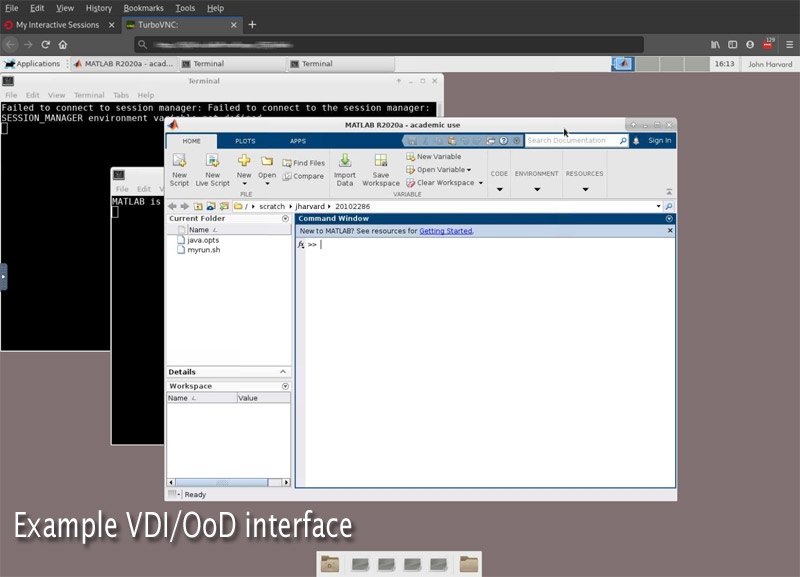
OpenOnDemand (OOD) or VDI (virtual desktop interface) is a virtual GUI interface that provides everything from pre-built apps to interactive command line access within a familiar desktop-like environment.

The FASSE OOD is available when connected to our @fasse VPN realm, through your web browser.  Please visit to access the service: https://fasseood.rc.fas.harvard.edu

See the following documentation for further information on how to leverage OOD on FASRC clusters:

  1. OOD Dashboard and Remote Desktop
  2. R and RStudio Server
  3. OOD Remote Desktop and Software

Command Line Access

Command-line access is also available for those who need/want to run jobs using a CLI. Login nodes for FASSE can be accessed by SSH at fasselogin.rc.fas.harvard.edu:

ssh jharvard@fasselogin.rc.fas.harvard.edu

Note that FASSE does not allow to run interactive jobs. Instead, you have to use OOD to run interactive jobs.

See our FASSE CLI documentation for further information. [Link Pending] 

Interim Documentation: See the very similar main cluster doc in the interim


FASSE FAQ

Please see STEP 0: HRDSP REQUIREMENTS at the top of this page. You must complete the Harvard HRDSP requirements before proceeding. If you do not have a FASRC account yet, you should also see: Account Signup

Level 3 and other sensitive files and data stored within the secure environment should never be transferred to storage on the FASRC main cluster or to outside storage which is not designed and approved to house secure data.

FASSE secure storage shares should be accessible via Globus to allow you to transfer your data.

Local Scratch on FASSE Nodes
Jobs on FASSE nodes have local scratch space at /scratch. Data in this space is only retained for the length of the job, as such data that needs to be retained should be saved to long term storage.

Global Scratch
Global scratch is available at /n/netscratch or using the $SCRATCH variable.

FASSE global scratch has the same 90-day retention policy. For policy details and more on the scratch variable, see: Scratch Policy

Each user has a home directory that is accessible only when logged into the secure FASSE environment. This home directory cannot be accessed on the main cluster. While you can also log into the main FASRC cluster, your FASSE home directory and project storage will not be accessible there as the main cluster is only rated for level 2 or lower data.
Users of the FASSE secure cluster can also log into the main FASRC cluster. This may be necessary for some users who also work with level 2 jobs or data with their lab on the main cluster. But bear in mind that these are two separate environments and data from FASSE cannot be transferred onto the level 2 FASRC Cannon cluster.

When logging into FASSE you will have a home directory that resides only on FASSE. When logging into the main cluster, you will find a different home directory. So bear this in mind if you do switch between the two.
Your lab directory on FASSE is accessible only when logged into the secure FASSE environment. Your lab directory cannot be accessed on the main cluster. While you can also log into the main FASRC cluster, your FASSE lab directory/project storage will not be accessible there as the main cluster is only rated for level 2 or lower data.

FASSE is a secure environment and, as such, does not allow direct access to the Internet.

Accessing the internet while connected to the FASSE VPN realm (@fasse) and from FASSE nodes is must be done through a network proxy.

This should be a global environment variable which is picked up by modern browsers, but some applications, including some command-line tools will require you to manually provide the proxy settings before they will be able to access the Internet.

NOTE: Our proxy does not allow all traffic, but should allow access to most things necessary for your work.

Command Line/Terminal
To manually set the proxy in your terminal environment, enter the following:
export http_proxy=http://rcproxy.rc.fas.harvard.edu:3128
export https_proxy=http://rcproxy.rc.fas.harvard.edu:3128

You can add these lines to your .bashrc if you find yourself needing to set this regularly.


Web Browsers
For web browsing, your browser should work if set to ‘Use system proxy settings’ / 'Auto-detect proxy’ (language may vary by browser). If this does not work automatically, you may need to manually add the proxies to your browser. You will need to disable this when not on the VPN.

HTTP Proxy: http://rcproxy.rc.fas.harvard.edu
Port: 3128

HTTPS Proxy: https://rcproxy.rc.fas.harvard.edu
Port: 3128

Data and Data Use Agreements (DUA)

Data and Data Use Agreements (DUA)

Preface

Before any data which is considered confidential, proprietary, or otherwise considered sensitive can be stored on the FASRC cluster, it must be properly classified and any data use agreements must be in place and available.

The project PI is responsible for ensuring that any future approved access is compliant with any DUA or data use other agreement, including updating the data provider before approving access, if required.

Human or Animal Data

If you are collecting or using data from humans or animals, you should contact Harvard’s Institutional Review Board (IRB) and/or Institutional Animal Care and Use Committee (IACUC) first.

Any data of this type which does not have an IRB determination cannot be transferred to the FASRC cluster until that process is complete. 

  • LEVEL 3/DSL3: Please note that only the FASRC FASSE Secure environment is rated for Level 3/DSL3. The main cluster is rated only for Level 2 or below.
  • LEVEL 4/DSL4: If you require a Level 4 environment, you can contact FASRC to discuss your project, but please be aware that FASRC does not currently provide a Level 4 secure environment. The FASRC cluster, including FASSE, is not suitable for DSL4 projects.
Where to start:

See also:

Data Use Agreements (DUA)

Many data sets require a Data Use Agreement which must be on file at Harvard and adhere to the requirements and duration of that agreement. This should be completed prior to transferring any such data to the FASRC cluster.

To submit, manage, and review DUA requests, you will use Harvard’s DUA Agreements System

Where to start:
HRDSPHarvard Research Data Security Policy site
HRDSPApplications Summary and Order of Reviews

Confidential Data

Confidential Data

We would like to bring your attention to how Harvard University classifies different types of confidential data and how they should be stored.

quick start

quick start

FAS Research Computing (FASRC) cluster access and usage is intended only for legitimate purposes which benefit research at Harvard University.  Access must be authorized by the faculty or management of the FAS or those of our partner schools, and by the staff of Research Computing.  Account access should only be granted for the purposes necessary to accomplish the goals of Harvard University and its research projects.  All active FAS RC account holders are subscribed to our notifications mailing list which is a requirement for all users.

Billing

Cluster usage and additional resources such as storage may be subject to charges to the PI, school, or department.  All billing is done exclusively via Harvard internal billing codes at the Tub/school level.

See our Data Storage Billing documentation.

Academic and Administrative Use

The FASRC clusters (Cannon and FASSE) are for research only and cannot be used for academic purposes. Harvard provides an Academic Cluster for those purposes.

FASRC cluster storage is for research data and results and is not suitable for administrative data storage.

Accounts

Accounts and account credential sharing is not allowed under university policies and reasonable precaution should be taken to keep your account credentials secure and private. No university staff will ever ask for your password.  Additionally, a user may have only one account at FASRC. All individual account holders, whether Harvard affiliates or outside collaborators agree to be held accountable by the Harvard University Electronic Access and Information Security polices: http://huit.harvard.edu/information-technology-policies. In addition, researchers should make themselves familiar with the university research policies maintained by the Provost’s Office.

All account holders agree to respect requests from support staff around how they use the system. The support staff may, as needed, impose whatever policies are required to ensure the system runs effectively for all users of the system.

Data Security

The Cannon cluster is for data rated as Level 2 or below. Level 3 data must be secured and processed on the FASSE cluster and storage. Level 4 or above data is not allowed on any FASRC cluster or storage.

Please also review the FASRC Cluster Storage Policy for guidelines an best practices around storage.

Customs and Responsibilities

In addition, the FASRC clusters and storage are shared resourcesm so please familiarize yourself with our Cluster Customs and Responsibilities.

Data Storage (Offerings, Workflow, Costs)

Data Storage (Offerings, Workflow, Costs)

FAS Research Computing (FAS RC) is transitioning to a new storage infrastructure, incorporating over 70 pebibytes of new data storage. This will ensure FAS RC remains at the forefront of research, with an innovative, scalable, and reliable data storage environment that will meet the evolving needs of the Harvard community.  

The transition consolidates and modernizes a significant portion of existing storage filesystems by migrating research data to new and improved hardware. 

Benefits: 

  • Enhanced support for computationally heavy workflows including AI and Machine Learning  
  • Improved researcher experience with greater visualizations and storage tracking capabilities including data lifecycle management  
  • Streamlined and consolidated storage environments reducing the need for migrations and complex data workflows 
  • More resilient and reliable hardware decreasing the potential for security risks and vulnerabilities
  • Built-in storage backups and encryption to prevent data loss 
  • Greater technological efficiency, reducing operational costs while allowing for long-term growth and scalability

Improvements:

  • Scalable, cost-effective storage designed to support researcher demands and lifecycle trends
  • Improved service quality with resilient infrastructure, providing reliable enterprise-grade support for a better user experience
  • Reduced manual overhead on data migration efforts, reallocating staff resources to strategic initiatives
  • Provides a predictable long-term cost recovery model with transparent pricing
  • Supports future initiatives including AI/ML workflows, secure multi-protocol access, and ever evolving scientific workflows

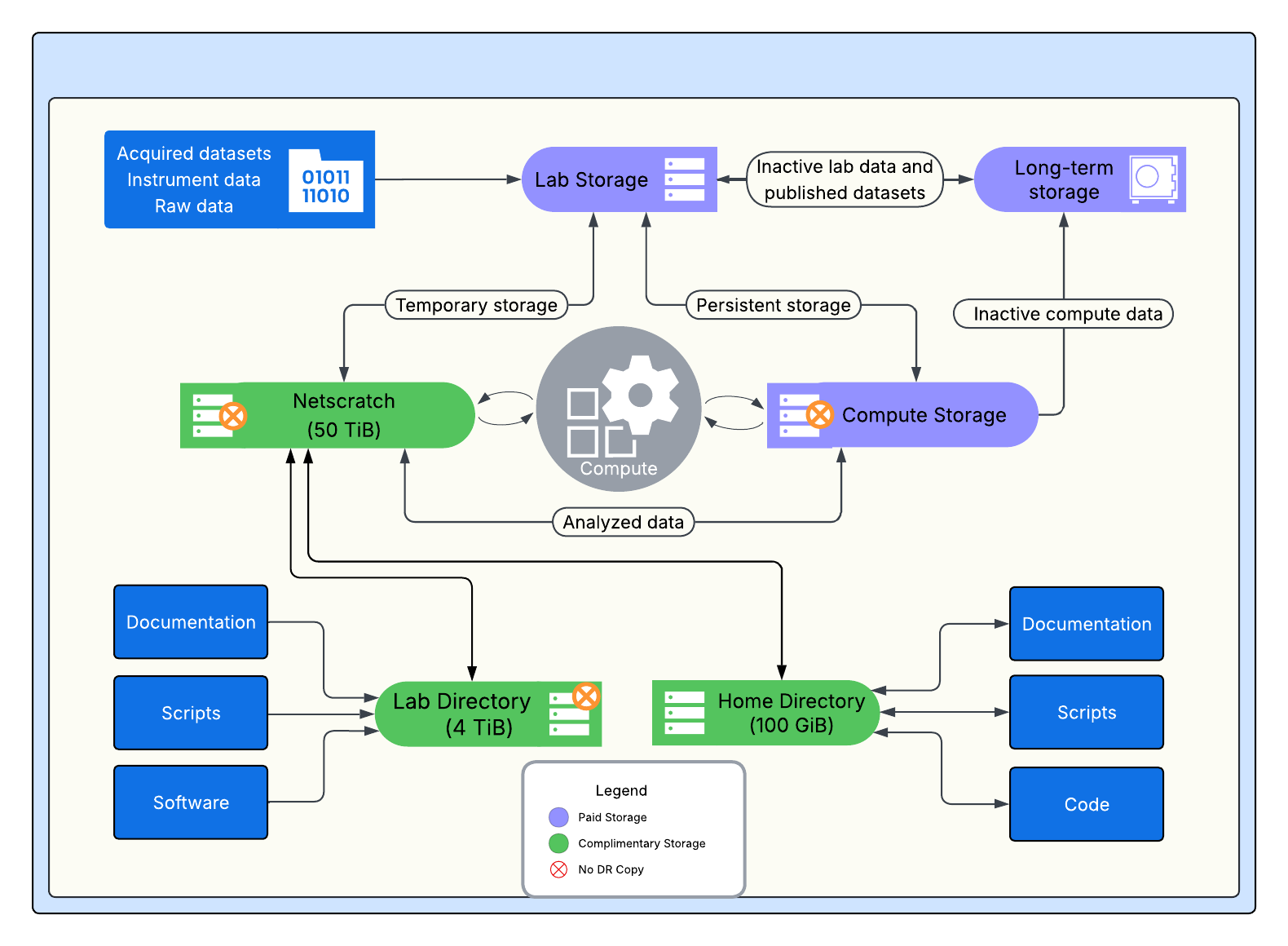
Identification of an appropriate storage location for your research data is a critical step in the research data lifecycle, as it ensures research data remains usable. We recommend you review the available storage options and select the preferred storage offering for your group’s intended workflow, keeping in mind how often the data will be consistently utilized and accessed. The offerings below are designed to store research data, rather than administrative data.

Each FASRC account is provided with a 100GiB Home Directory for individual use. Each PI or Lab Account also receives a 4TiB Lab Directory, for use by all members of the PI’s lab group and a 50TiB allotment of scratch (networked scratch). See the matrix below for more details.

*Snapshots are copies of a directory taken at a specific moment in time. They offer labs a self-service recovery option for overwritten or deleted files within the specific time period. Disaster recovery is a copy of an entire file system that can be used internally by FASRC in case of system-wide failure.

Storage Offerings (Paid)

Compute StorageLab StorageLong-term StorageTape (NESE)FASSE
DescriptionActive storage for data analysis; data readily utilized and accessed. Highly performant cluster adjacent storage. Optimized for AI/ML workflows.General purpose storage for raw and project data. Not intended for heavy computational workflows. Can be used as buffer storage for lab instruments.Long-term storage of research data to meet institutional data retention and compliance requirements. On-premise long-term storage option for Harvard affiliated labs.Long-term storage of inactive research data after project completion or data retention purposes. Externally managed by Northeast Storage Exchange (NESE).Secure storage environment for analysis or sensitive data, such as data generated using Data Use Agreements (DUAs) or IRB
PerformanceHighModerateLowNoneModerate
SizeAvailable upon requestAvailable upon requestAvailable upon request20TB increments. Ten thousand files per folder. File sizes between 1GiB to 100 GiB.Available upon request
Folder Path/n/compute_storage/pi_lab/n/lab_storage/pi_lab/n/long_term/pi_labTransfer data to Tape using Globus/n/fasse/pi_lab_projectname_l3
RetentionWeekly snapshots for 2 weeks. No disaster recovery.Daily snapshots weekly. Weekly snapshots every 4 weeks. Includes disaster recovery.No snapshots. Disaster recovery at additional cost.**No snapshots. No disaster recovery.Daily snapshots weekly. Weekly snapshots every 4 weeks. Includes disaster recovery. Encryption at rest included.
Cost$150/yr per TiB$125/yr per TiB$30/yr per TiB$15/yr per TB$150/yr per TiB
Security LevelLevel 2Level 2Level 2 (Up to Level 3)**Level 2Up to Level 3
StorageRequest storage allocationRequest storage allocationRequest storage allocationRequest storage allocationRequest storage allocation

Requesting Storage

To request a new storage allocation, or to modify an existing storage allocation, please login to the Coldfront Storage Allocation tool. To login to Coldfront, please use your FASRC username and password. If you have difficulties with your password, you can reset it. You may also need to clear the cache on your website browser. If requesting a new storage allocation, you will need to indicate which storage offering you would like to acquire and the associated 33-digit billing code. If you do not have a FASRC Account, you will need to request one before logging into Coldfront.

PIs, General Managers, and Storage Managers are able to request new allocations, or make changes to existing allocations. PIs can email rchelp@rc.fas.harvard.edu if they would like to assign a General Manager or Storage Manager role to their lab, as this will allow the lab member to add and/or modify storage allocations.

NOTE: All new Lab Storage allocation requests can now be fulfilled. All new FASSE Storage allocation requests will be fulfilled beginning in late June. Compute Storage Allocation requests will continue to be stored on Tier 0 until the Compute Storage environment is available later this Summer. For more information about the timeline of the Storage Modernization Initiative, please visit the Data Storage website.

** Long-term Storage is a new offering for FAS RC. As such, we are still investigating additional features including the option to offer Disaster Recovery for a cost and increase the security level to Level 3. Further information will be provided to the community regarding disaster recovery cost and higher security levels later this year.

Storage Offerings (Complimentary*)

Home DirectoryLab Directorynetscratch
DescriptionPersonal user storage. Not recommended for computational purposes.General lab storage. Install software to be referenced from netscratch.Temporary storage location for high performance data analysis.
PerformanceModerateModerateHigh
Size100GiB (fixed)4TiB (fixed)50TiB (fixed)
Mount/n/homeNN/username/n/holylabs/n/netscratch
RetentionDaily snapshots weekly. Weekly snapshots every 4 weeks. Disaster recovery.No snapshots. No disaster recovery.No snapshots. No disaster recovery.
90-day retention policy.
CostNoneNoneNone
Security LevelUp to Level 2Up to Level 2Up to Level 2
StorageFolder generated for each user when granted cluster access. Limited to 100GiB.Folder generated for each approved PI and their group. Limited to 4TiB.Accessible to group members.

*Harvard-sponsored

Data Storage Workflow

Default Directory Structure

Two subdirectories will be present by default within the parent directory to enable easier Globus transfers and provide some initial guidance for how to organize storage.

Lab: This directory is intended as the primary working directory. It is also the directory shared out via Globus. By default, folders in this subdirectory are visible to the whole lab. Individual users may update their permissions to adjust access as they like though we highly recommend keeping access open to all lab members to allow for easier collaboration and data cleanup after you leave the university.

Everyone: This directory is visible to any one on the HPC cluster and is intended for collaboration with other labs on the cluster. Data in this directory is by default owned by the lab who hosts the data. Note that this directory is not available on Globus and is intended only for internal sharing.

While this is the default structure, labs may request additional folders be set up. Please email rchelp@rc.fas.harvard.edu if you have questions.

Directory structures on the cluster may differ depending on when they were created. Some older storage folders may have a third subdirectory called Users. We have deprecated use of this folder due to issues related to data access by the lab and PI’s, especially after users have left the university. If you are migrating data from a storage system that has a Users subdirectory we recommend moving that data into the Lab directory and making it available to the lab to view and access.

Contact:

If you have questions regarding the data storage options at FASRC, please email the Research Data Manager at rdm@rc.fas.harvard.edu.

Offboarding Policies and Procedures

Offboarding Policies and Procedures

This document outlines FAS Research Computing’s policies and procedures related to the offboarding of researchers and PIs. The document is structured as a checklist, to be utilized by researchers and PIs prior to their departure, to ensure a seamless transition. The document also notates differences between the offboarding of researchers and faculty (PIs).  

Offboarding Checklist: Leaving Harvard University

Researchers:

  1. General: 

    1. Inform FASRC via email prior to leaving the university, and provide us with an estimated departure date. 
  2. Storage: 

    1. Please review all research data prior to your departure (FAS Storage, Google Drive, Dropbox etc.). Confirm with your PI and department what data can be deleted or moved to long-term storage. 
      1. Review and receive approval from your PI what data can be removed. 
        1. Delete any data approved by your PI. 
        2. Please ensure a record of what data was deleted is available to your PI, if needed.
        3. For protected data (Level 3), PIs are responsible for informing FAS RC if and when the data requires disposal. Please email FAS RC to discuss destruction options.
      2. If research data stored on FASRC storage is ready to be moved to long-term storage, work with FASRC’s Research Data Manager and your PI to migrate the data. 
        1. An FASRC account is required to access FASRC storage; please ensure you have an account prior to moving data via rclone or Globus
      3. Ensure your research data is available to your PI and other collaborators, moving all research data to a shared storage location prior to your departure. Please ensure a record of what data was migrated is available to your PI, if needed.
      4. If you would like to take data with you following your departure from the university, you will need approval from your PI and department. Research data generated at the university is owned and maintained by the university. 
  3. Accounts 

    1. We will be closing your FASRC account when your appointment ends and your Harvard email account is closed. 
    2. If you need to maintain a FASRC account, please have your PI or authorized lab member (general manager or access manager) email us directly, prior to your departure, so we can convert the account to an external account. We will also need an external email address for the account, as your Harvard email will be disabled automatically. 
    3. Disabling the account will automatically remove you from associated groups, including secure groups (FASSE), administrative groups, and project groups. 

Faculty/PIs:

  1. General: 

    1. Inform FASRC via email when you will be leaving the university. 
    2. Please inform FASRC if you will be returning or compensating FASRC for any physical resources (compute notes and storage servers).  
    3. Please ensure you review the FAS Employee Exit Checklist; the document highlights other offboarding responsibilities for faculty leaving Harvard.
  2. Software: 

    1. All purchased software will remain on the cluster. Please delegate the software license responsibility to another entity (lab or department) or inform FASRC when the license will expire. 
  3. Storage: 

    1. Please review all research data prior to your departure. Confirm what data can be deleted or moved to long-term storage.
      1. Please review Harvard’s Data Retention FAQs, to ensure you are in compliance with the university’s policy around data retention.
      2. Collaborate with FASRC’s Research Data Manager to migrate remaining data to long-term storage. 
    2. If you would like to take research data with you following your departure from the university, ownership of the original data may be transferred from Harvard to your new institution upon request. The University asserts ownership over research data for all projects conducted at the University, under the auspices of the University, or with University resources.
      1. Requirements:
        1. Prior written approval from the Vice Provost for Research;
        2. A written agreement from your new institution that guarantees its acceptance of ongoing custodial responsibilities for the data and allowing Harvard access to the original data, should such access become necessary for any reason;
        3. Relevant confidentiality restrictions, where appropriate.
  4. Accounts 

    1. Inform FASRC via email when you will be leaving the university so they can disable your account. Your FASRC account will be closed when your appointment ends and your Harvard email account is closed. If you attain a different appointment at Harvard after your primary appointment ends, please notify FASRC as soon as possible.
    2. All lab members will need a new sponsor for their accounts. Please inform FASRC who the new sponsor will be for any remaining lab members. 
    3. Disabling your account will automatically remove you from associated groups, including secure groups (FASSE),  administrative groups, and project groups. 
  5. Virtual Machines 

    1. Remove any data you would like to retain from virtual machines prior to your departure; please inform FASRC once the data has been removed 
    2. Virtual Machines will be decommissioned shortly after your departure, once it is no longer aligned with an active account.

Offboarding Checklist: Changing Labs/Groups

Researchers:

  1. Request to be added to the new group using Portal. Your PI can also utilize Coldfront to add users to their group. 
  2. Review your research data to determine what data will need to remain in your previous lab folder(s) and what data needs to be migrated to your new lab folder
    1. Discuss the data migration with your former PI and get approval for the move.
    2. If you plan to continue to store research data in your previous lab folder, confirm this with your former PI, as there will be associated storage costs. 
    3. Delete any research data that will not be useful to either lab. Confirm with your former PI what data can be removed.
    4. Ensure your research data is available to your former PI and other collaborators, moving your research data to a shared storage location prior to your departure. Please ensure a record of what data was migrated is available, if needed.
    5. Review data in your group’s Scratch environment, as the data will be removed.
  3. Your new PI must inform FASRC via email that they will be sponsoring your account, so they can be assigned as your primary group. Provide the date of transition. 
  4. FASRC will then modify your FASRC account information.
    1. Add you to the new lab group/department
    2. Add your new PI as your manager
    3. Modify your Slurm group to be associated with the new lab
    4. Remove you from your previous lab and Slurm group. 
      1. If you require access to your previous lab, your former PI can re-add you to their group using the Coldfront application. 
  5. Storage
    1. Home directory data will always remain with the user account. The data will not need to be transferred. 

Additional information:

  1. Harvard Human Resources Offboarding Information 
  2. Harvard IT Offboarding Information 

Contact:

If you have questions regarding the offboarding process, please email the FAS Research Data Manager at rdm@rc.fas.harvard.edu.

SEAS Compute Resources

SEAS Compute Resources

The Harvard John A. Paulson School of Engineering and Applied Sciences (SEAS) has a number of compute resources managed by FAS Research Computing. These compute partitions are open to all researchers at SEAS and their allocation is governed by the relative fairshare of the groups. The partitions themselves are broken down into seas_compute for cpu-only nodes and seas_gpu for gpu nodes:

  • seas_compute:
    • Cores: 5584 cores of compute ranging from Intel Cascade Lake to Intel Sapphire Rapids.
    • Time limit: 3 day time limit.
  • seas_gpu: 
    • Cores:  of GPU’s contains 3904 cores of compute ranging from Intel Ice Lake to AMD Genoa.
    • GPUs: 244 gpus ranging from Nvidia A100 to Nvidia H200.
    • Time limit: 2 day time limit.
    • Interactive jobs: limited to less than 6 hours and no more than 2 cores.

seas_compute and seas_gpu are mosaic partitions, meaning they have a variety of hardware and interconnects. For users requiring specific types of hardware please use the --constraint option in Slurm. A full list of constraints can be found on the Running Jobs page. To get specific gpu models see the GPU section of the Running Jobs page. For more information about Slurm partitions on the FAS RC cluster, please refer to the Running Jobs document.

Note: SEAS partitions are restricted to SEAS and requires membership in the seas group when logged into the FASRC cluster. You can view your groups using the id command:

[jharvard@rclogin ~]$ id
uid=12345(jharvard) gid=99999(harvard_lab) groups=34540(cluster_users_2),34739(seas)

If you are sponsored by a faculty member listed on the SEAS Faculty page but do not have seas group membership please create a ticket by sending an email to rchelp@rc.fas.harvard.edu.

For researchers needing a secure environment, the FAS Secure Environment (FASSE) is a secure multi-tenant cluster environment to provide Harvard researchers access to a secure enclave for analysis of sensitive datasets with DUA‘s and IRB’s classified as Level 3.  Please see the FASSE cluster documentation for how to gain access. Note that a home folder on FASSE is separate from any home folder you might have on the FASRC (Cannon) cluster. Data from the secure level 3 (FASSE) environment should not be transferred into level 2 space (Cannon).

Frequently Asked Questions (FAQ)

Frequently Asked Questions (FAQ)


LOGIN AND AUTHENTICATION

My login is slow or my batch commands are slow

Nine times out of ten, slowness at login, starting file transfers, failed SFTP sessions, or slow batch command starts is caused by un-needed module loads in your .bashrc

We do not recommend putting multiple module loads in your .bashrc as each and every new shell you or your jobs create will call those module loads. It is recommended that you put your module loads in your job scripts so that you are not loading un-needed modules and waiting on those module calls to complete before commencing the job. Alternately, you can create a login script or alias containing your frequently used modules that you can run when you need to use them.

Either way, try to keep any module loads in your .bashrc down to a bare minimum, calling only those modules that you absolutely need in each and every login or job.

Additionally, as time goes on modules change or are removed. Please ensure you remove any deprecated modules from your .bashrc or other scripts. For example, the legacy modules no longer exist. So if you have a call to module load legacy and any of the legacy modules, or if you have source new-modules.sh your login will be delayed as the module system searches for and then times out on those non-existent modules.

My alternate shell (csh, tcsh, etc.) doesn’t work right

Having a non-standard default shell will cause problems and does not allow us to set global environmental defaults for everyone. As 2019 we will no longer change the default shell on any account or support the use of alternate shells as default login shell.

Users can, of course, still launch an alternate shell once logged in. Built-in shells such as sh, zsh, and csh already exist on most nodes.

SSH key error, DNS spoofing message

If you  are getting SSH key or host errors, see this page.

SFTP exits after a few seconds

When connecting via a SFTP client like Filezilla, if you experience a short delay and then disconnection, this is most likely an issue caused by your .bashrc

During SFTP connections, your .bashrc will be evaluated just as if you were logging in via SSH. If you’ve added anything to your .bashrc that attempts to echo to the terminal/standard out, this will cause your SFTP client to hang and then disconnect.

You can either remove the statement in your .bashrc that is writing output (an echo statement, a call to an app or module that sends a message to standard out, etc.) -or- you can put the offending statement into an evaluation clause that first checks to see if this is a interactive login, like so:

if [ “$SSH_TTY” ]
  then
     echo “SFTP connections won’t evaluate the things inside this clause."
     echo "Only real login sessions will.”
  fi

What happens to my account when I leave/graduate?

Please see this page: What happens to my FASRC account when I leave Harvard?

How do I request membership in additional lab groups?

Please see Additional Group Membership

Can I use SSH keys to log in without a password?

No. Our cluster login relies on two-factor authentication. This makes using key-based authentication impractical.

How do I get a Research Computing account?

Before You Sign Up

If you are unsure whether you qualify for an RC account, please see Qualifications and Affiliations. More information on using the signup tool can be found here.

Please Note: You may have only one RC account. If you need to add cluster access or membership in a different/additional lab group, please submit a help ticket. Please do not sign up for a second account. This is unnecessary and against our account policies.

The Process

To request an account to access resources operated by Research Computing. (Cluster, Storage, Software Downloads, Workstation access, Instrument sign-up, etc.), please proceed to the

Account Request Tool

PLEASE NOTE: Do not select FACULTY as your job type is you do not have a faculty appointment. If you are a researcher with additional rights (fellowship, PI-like rights, funding, etc.), please select STAFF or POSTDOC. Faculty accounts are intended only for those holding an active Associate Professor or higher appointment.

Once you’ve submitted the request, the process is:

If You Selected: Internal/Using Harvard Key to verify your information and qualifications:

  1. The request is on hold while the PI is asked to approve or reject it.
  2. Once approved, the account is finalized and set up.
  3. Once finalized, you receive an automated email confirmation with your new account information and instructions for setting the password.

If You Selected: External/Not using Harvard Key to verify your information and qualifications:

  1. The request goes to RC personnel to check that it is complete and meets affiliation requirements.
  2. Once approved by RC, an email is sent to your PI to approve/reject the request.
  3. The request is on hold while the PI is asked to approve or reject it.
  4. Once approved, we finalize the account on our side (during business hours).
  5. Once finalized, you receive an automated email confirmation with your new account information and instructions for setting the password..

You can then proceed to set up your OpenAuth token and get connected to the cluster. The turnaround time is directly related to the PI/Sponsor’s approval of the account. External accounts are reviewed by RC staff during business hours and generally vetted and sent on to the PI/Sponsor for approval within one business day

NOTE! If you request “Cluster Use” (the ability to run jobs on the cluster), attend one of our monthly New User Trainings or watch our Introduction videos.

Can someone else approve my account request?

Initially, only the PI for a lab can sponsor and approve new accounts under their lab group. They may also at any point designate another account holder(s), such as a lab admin or faculty assistant, in their lab as additional approvers by contacting FASRC directly. Approval to add additional approvers can only come directly from the PI to FASRC (e.g. – a forwarded email is not sufficient, the PI needs to contact us directly.)

Can I share an account? – Account Security Policies

The sharing of passwords or login credentials is not allowed under RC and Harvard information security policies. Please bear in mind that this policy also protects the end-user.

Sharing credentials removes the ability to audit and accountability for the account holder in case of account misuse. Accounts which are in violation of this policy may be disabled or otherwise limited. Accounts knowingly skirting this policy may be banned.

If you find that you need to share resources among multiple individuals, Faculty can approve accounts for outside collaborators to their lab groups. Otherwise, please contact us and we will be happy to assist you with finding a safe and secure way to do so.

How do I login to the FASRC cluster?

See our Access and Login page.
and/or
Our terminal access page.

How do I reset my Research Computing account password?

Please click here to reset your Research Computing account password using your email address.

This will send an email to you with a one-time use link to set a new password.

Please note: Your username is not your email address. Your email address is used here only for password resets and to contact you.

How do I unlock my locked Research Computing account?

Typically, after entering the incorrect password multiple times your account will become locked. Once your account is locked, your account will automatically unlock after ~ 5 – 10 minutes. If your account remains locked for longer please contact us.

How do I install and launch OpenAuth?

If you do not yet have an account, see: How do I get a Research Computing account? For additional instructions, see: Account Signup

Setting Up Your OpenAuth Token

  1. Visit https://two-factor.rc.fas.harvard.edu/ to start setup of OpenAuth.
  2. A login box will appear. Log in with your FAS RC username and password (your username is not your email address or Harvard Key, it is the short username you initially set up when requesting an account. Example: jsmith )
  3. After logging in, allow a few seconds as the site generates your token.
  4. A page will be displayed outlining next steps
  5. Await an email. This email will contain a link to your personalized token. You can download the Java applet or use the QR code on that page to add your RC token in Google Authenticator or Duo Mobile

Since the site uses email verification to authenticate you, you must also have a valid account and email address on record with Research Computing. All OpenAuth tokens are software-based, and you will choose whether to use a smart phone or java desktop app to generate your verification codes. Java 1.6 or higher is required for the desktop app.

You will need to use OpenAuth when accessing the Research Computing VPN and logging into the FAS RC cluster.

How do I logon to the Research Computing VPN?

Please see our VPN setup guide here.

Linux users please see our guide to using OpenVPN here.

I need an AWS account and/or Amazon AWS virtual machine

AWS offerings are through HUIT. Please see https://cloud.huit.harvard.edu/ or contact ithelp@harvard.edu


FILESYSTEMS AND AUTHORIZATION

Where is ftp?

Modern secure transfer protocols like SFTP and SCP secure data during transit and should be used when moving files from one place to another. However you may still need to use plain, un-secured FTP to download data sets or other files from remote locations while logged into the cluster.

While we do not offer the largely outmoded ‘ftp’ program on the cluster, we do offer the feature-rich and largely command compatible ‘lftp’. From any login or compute node type ‘man lftp’ to see its usage and options.

How do I request membership in additional lab groups?

Please see Additional Group Membership

What’s the best way to transfer my data?

INTERNAL
See our ‘Transferring data on the cluster‘ page for a list of options and best practices for data transfer within the cluster.

EXTERNAL
For transferring data to and from the cluster, see ‘Transferring data externally‘.

How do I access my cluster home directory from my laptop?

FASRC cluster home directories are available through SAMBA and so can be mounted as a network drive on Mac, Windows, and Linux computers. See the Mounting Storage page for specific instructions on how to mount the directory.

How do I check how much space I’ve used, what’s my quota?

See Checking quota and usage for information on how to use the FASRC quota tool to check quota and storage usage. FASRC filesystems supported by this tool are described in Data Storage Workflow.

I accidentally deleted my data, how do I get it back?

Your home directory has periodic snapshots taken. These snapshots are of your home directory files from various recent points in time. They are in a hidden directory named .snapshot, within every other directory in your home directory. The command ls -a will not show these, but you can ls .snapshot directly, and cd .snapshot to go into the directory.

In the .snapshot folder you will see “hourly” “daily” “monthly” folders with the date of the snapshots. Traverse (cd) to the snapshot folder corresponding to the period you wish to restore data from. From there you can simply copy the relevant files back into your home folder using your favorite file copy tool (rsync, cp, etc.)

Lab directory backups are for system-wide disaster recovery only, they are handled separately and do not have snapshot capabilities, they are not intended to recover accidental file deletions. Please contact FASRC if you have any questions.

Please also see our Storage document for more info.

Why are all my files executable?

You may notice that the x (execute) bit is set on all your files:

[username@boslogin01 ~]# ls -l myfile.txt-rwxr–r– 1 username groupname 3029 Aug 20 03:10 myfile.txt

Furthermore, chmod does not remove it:

[username@boslogin01 ~]# chmod u-x myfile.txt
[username@boslogin01 ~]# ls -l myfile.txt
-rwxr–r– 1 username groupname 3029 Aug 20 03:10 myfile.txt

This is a feature, a result of the storage system doing mixed Unix-style and Windows-style permissions. If this is causing a problem for you, please contact FASRC.

Why does my UMASK not work?

You may also notice that your UMASK environment variable does not work as expected:

[username@boslogin01 ~]# umask 002
[username@boslogin01 ~]# touch newfile.txt
[username@boslogin01 ~]# ls -l newfile.txt
-rwx—— 1 username groupname 3029 Aug 20 03:10 newfile.txt

Normally, the outcome would be -rw-rw-r--. If this is causing a problem for you, please contact FASRC.

Is my home directory available as a network filesystem share?

Yes, your cluster home directory is available as a network filesystem share to which you can directly connect your own desktop or laptop. The technical protocol for this is called CIFS or Samba, so you will often hear us refer to it in that way. On Windows, this is also referred to as mapping a network drive, and on a Mac it is called connecting to a server.

In all cases, you need your RC username, password, server name, and path. Please see the Mounting Storage document for detailed information.

I am seeing weird errors about file locking with HDF5. What do I do?

VAST filesystems (netscratch and holylabs) have known issues with file locking for HDF5 and other things that do sophisticated parallel IO. It is recommended that you build and use the vast-preload-lib for your specific MPI version. You may also need to set export HDF5_USE_FILE_LOCKING=FALSE


SOFTWARE

I need cluster access to Gaussian

Please contact us if you require Gaussian access. It is controlled on a case-by-case basis and requires membership in a security group.

To see all available versions of Gaussian, visit the All Modules page and Search for ‘gaussian’.

I need to download GaussView or MOE

FASRC users can download these clients from our Downloads page. You must be connected to the FASRC VPN to access this page. Your FASRC username and password are required to log in.
FASRC no longer has access to a JMP Pro/Genomics license. Please see the JMP site for licensing details. FASRC does provide SAS 9.4 for use in jobs on the cluster.

I need to download Geneious Pro or MOE (only available for FAS users)

FAS members can download these clients from our Downloads page. You must be connected to the FASRC VPN to access this page. Your FASRC username and password are required to log in. Not for use by members of other schools or external users.

Geneious should work from any wired Harvard Science department network or when connected to either the FAS or RC VPN. A VPN connection will be required if you are using HARVARD WIRELESS network connection or a network connection not allocated to departments within Harvard’s FAS Division of Science. For details on using the RC VPN (@fasrc), please see FASRC VPN setup.

I can’t search for R

Unfortunately, having a single letter as the name of an application makes searching problematic.

Here are links to our R Basics and R Packages pages

Where is FTP?

Modern secure transfer protocols like SFTP and SCP secure data during transit and should be used when moving files from one place to another. However you may still need to use plain, un-secured FTP to download data sets or other files from remote locations while logged into the cluster.

While we do not offer the largely outmoded ‘ftp’ program on the cluster, we do offer the feature-rich and largely command compatible ‘lftp’. From any login or compute node type ‘man lftp’ to see its usage and options.

How do I load a module or software on FASRC cluster?

Step 1: Login to the cluster through your Terminal window. Please see here for login instructions.

Step 2: Load a module/software by typing: module load MODULENAME. Replace MODULENAME with the specific software you want to use. A complete listing of modules can be found on the module list page.

To see what modules you have loaded type: module list

To unload a module type: module unload MODULENAME

Details can be found in the modules section of the Running Jobs page.

FileZilla: I have to enter my OpenAuth code every 30 seconds

If you are using Filezilla to transfer files to the cluster, and you are prompted frequently (like every 30 seconds!) to enter your username and/or OpenAuth token code, then most likely you did not configure FileZilla according to our instructions. You must limit the number of connections to 1, else Filezilla will spawn more connections, each requiring you to authenticate.

Please see this document on how to set the connection limit and avoid the OpenAuth challenge frustration while transferring files to and from the cluster.

Git/Github: 403 Forbidden while accessing https://github.com…

If you issue a git push to a cloned repository, you might receive the following error:

error: The requested URL returned error: 403 Forbidden while accessing https://github.com/yourusername/planets.git/info/refs
fatal: HTTP request failed

Authorization to Github repositories on the cluster is can be a little tricky. Please follow our instructions at or git and github on the FASRC cluster.

How do I run a Matlab script on the FASRC cluster?

To run a Matlab script (with no graphical interface component) on the cluster, login using your preferred terminal application then activate the application by loading the module.

module load matlab/R2018b-fasrc01

Then, assuming your script is named calc.m, either run it through an interactive session

salloc --mem 1000 -p test matlab -nojvm -nodisplay -nosplash < calc.m

or use the matlab command in a batch script

#!/bin/bash
#SBATCH -o calc.out 
#SBATCH -o calc.err 
#SBATCH -p serial_requeue 
#SBATCH -n 1 
#SBATCH --mem 1000 
#SBATCH -t 1000

matlab -nojvm -nodisplay -nosplash < calc.m

Make sure that `calc.m` finishes with an `exit` command. Otherwise, the process will hang waiting for further input.

Perl modules: Can’t locate XX.pm in @INC

Perl modules have been developed over the past 15 to 20 years, and the installation method has changed significantly. Unfortunately, you might run into a program that needs to install a really old Perl module, and its installation is just not behaving properly under the new installation methods. You might see something like the following:

[bfreeman@holylogin01 PfamScan]$ ./pfam_scan.pl --help
Can't locate Data/Printer.pm in @INC (@INC contains: /n/sw/fasrcsw/apps/Core/perl-modules.....

The remedy can be rather simple:
1. Follow our new lmod – Perl instructions here on setting up your home directory for installing Perl modules ‘locally’.

Note that the export PERL5LIB command must include both $LOCALPERL and $LOCALPERL/lib/perl5 (it’s subdirectory) as some installation routines honor one; some the other.

2. Sometimes, you might need to install the module manually. Try both the Makefile.PL build and the Build.PL build if one or the other doesn’t work.

3. In CPAN, you can do this manual install method without the hassle of the download process:

cpan
look Data::Printer

This latter command will download the module and unpack it for you, and leave you at the shell, where you can try either the Makefile.PL or Build.PL build process.

Illegal Instruction

If you are getting an error indicating an illegal instruction that likely means that your code was built on a different processor type than the one you are running on. The cluster has a variety of different hardware and if your code tries to leverage instructions specific to that hardware then the code cannot run on other types of hardware. To resolve this error you will either need to build your code with out the hardware specific instruction sets, or tell the scheduler via the --constraint option to only run your jobs on the specific hardware types you have built your code for. A full list of constraints can be found on the Running Jobs page.

Installing LaTeX packages

The TeX Live distribution that is installed on FASRC cluster nodes includes a core set of LaTeX packages. Missing packages needed for a specific LaTeX document may be installed in your home directory. One-time setup is needed beforehand:

tlmgr init-usertree
tlmgr --usermode option repository https://ftp.math.utah.edu/pub/tex/historic/systems/texlive/2017/tlnet-final

Then, e.g., given the following error when using LaTeX:

! LaTeX Error: File `ucharcat.sty' not found. 

The missing package may be installed in your home directory as follows:

tlmgr --ignore-warning --usermode install ucharcat


JOBS AND SLURM

How do I know what partitions I have access to?

The spart command can be used find a quick summary of this information.  scontrol show partition and sinfo will also give more detailed information about the various partitions you have rights to use.

How do I know what memory limit to put on my job?

Add to your job submission:

#SBATCH --mem X

where X is the maximum amount of memory your job will use per node, in MB. The larger your working data set, the larger this needs to be, but the smaller the number the easier it is for the scheduler to find a place to run your job. To determine an appropriate value, start relatively large (job slots on average have about 4000 MB per core, but that’s much larger than needed for most jobs) and then use sacct to look at how much your job is actually using or used:

sacct -o MaxRSS -j JOBID

where JOBID is the one you’re interested in. The number is in KB, so divide by 1024 to get a rough idea of what to use with –mem (set it to something a little larger than that, since you’re defining a hard upper limit).

For more information see here.

How do I figure out how efficient my job is?

The jobstats command can be used to report job efficiency and help determine CPU/GPU/memory/time to allocate to future jobs.

See Job Efficiency and Optimization Best Practices for tips on how to right-size job allocations and optimize use of allocated resources.

Will single core/thread jobs run faster on the cluster?

The cluster cores, in general, will not be any faster than the ones in your workstation, in fact they may be slower if your workstation is relatively new. While we have a variety of chipsets available on the cluster, most of the cores are AMD and will be slower than many Intel chips, which are most common in modern desktops and laptops. The reason we use so many AMD chips is that we could purchase a larger number of cores and RAM this way. This is the power of the cluster. The cluster isn’t designed to run a single core code as fast as possible as the chips to do that are expensive. Rather you trade off raw chip speed for core count. Then you gain speed and efficiency via parallelism. So the cluster excels at multicore jobs (using threads or MPI ranks) or doing many jobs that take a single core (such as parameter sweeps or image process). This way you leverage the parallel nature of the cluster and the 60,000 cores available.

So if you have a single job, the cluster isn’t really a gain. If you have lots of jobs you need to get done, or your job is too large to fit on a single machine (due to RAM or its parallel nature), the cluster is the place to go. The cluster can also be useful for offloading work from your workstation. That way you can use your workstation cores for other tasks and offload the longer running work onto the cluster.

In addition since the cluster cores are a different architecture from your workstation one needs to be aware that the code will need to be optimized differently. This is where compiler choice and compiler flags can come in handy. That way you can get the most out of both sets of cores. Even there you may not get the same performance out of the cluster as your local machine. The main processor we have on the cluster is now 4 years old, and if you are using serial_requeue you could end up on hardware bought today to stuff purchased 7 years ago. There is about a factor of 2-4 in performance in just the natural development of processor technology.

My login is slow or my batch commands are slow

Nine times out of ten, slowness at login, starting file transfers, failed SFTP sessions, or slow batch command starts is caused by un-needed module loads in your .bashrc

We do not recommend putting multiple module loads in your .bashrc as each and every new shell you or your jobs create will call those module loads. It is recommended that you put your module loads in your job scripts so that you are not loading un-needed modules and waiting on those module calls to complete before commencing the job. Alternately, you can create a login script or alias containing your frequently used modules that you can run when you need to use them.

Either way, try to keep any module loads in your .bashrc down to a bare minimum, calling only those modules that you absolutely need in each and every login or job.

Additionally, as time goes on modules change or are removed. Please ensure you remove any deprecated modules from your .bashrc or other scripts. For example, the legacy modules no longer exist. So if you have a call to module load legacy and any of the legacy modules, or if you have source new-modules.sh your login will be delayed as the module system searches for and then times out on those non-existent modules.

How do I request membership in additional lab groups?

Please see Additional Group Membership

Can I query SLURM programmatically?

I’m writing code to keep an eye on my jobs. How can I query SLURM programmatically?

We highly recommend that people writing meta-schedulers or that wish to interrogate SLURM in scripts do so using the squeue and sacct commands. We strongly recommend that your code performs these queries once every 60 seconds or longer. Using these commands contacts the master controller directly, the same process responsible for scheduling all work on the cluster. Polling more frequently, especially across all users on the cluster, will slow down response times and may bring scheduling to a crawl. Please don’t.

SLURM also has an API that is documented on the website of our developer partners SchedMD.com.

Are their policies or guidelines for using the cluster responsibly?

Yes. Please see out Customs and Responsibilities page.

How do I submit a batch job to the FASRC cluster queue with SLURM?

Step 1: Login to cluster through your Terminal window. Please see the Access and Login page for login instructions.

Step 2: Run a batch job by typing: sbatch RUNSCRIPT. Replace RUNSCRIPT with the batch script (a text file) you will use to run your code.

The batch script should contain #SBATCH comments that tell SLURM how to run the job.

#!/bin/bash
#SBATCH -n 1 #Number of cores 
#SBATCH -t 5 #Runtime in minutes
#SBATCH -p serial_requeue #Partition to submit to 
#SBATCH --mem-per-cpu=100 #Memory per cpu in MB (see also --mem) 
#SBATCH -o hostname.out #File to which standard out will be written 
#SBATCH -e hostname.err #File to which standard err will be written 

See the batch submission section of the Running Jobs page for detailed instructions and sample batch submission scripts.

Note: You must declare how much memory and how many cores you are using for your job. By default SLURM assumes you need 100 MB. The script assumes that it is running in the current directory and will load your .bashrc.

How do I submit an interactive job on the cluster?

Step 1: Log in to the cluster through your Terminal window. Please see here for login instructions.

Step 2: Run an interactive job by typing: salloc -p test MYPROGRAM

This will open up an interactive run for you to use.  If you want a bash prompt, type: salloc --mem 500 -p test

If you need X11 forwarding type: salloc --mem 500 -p test --x11 MYPROGRAM

This will initiate an X11 tunnel to the first node on your list.

See also the interactive jobs section of the Running Jobs page.

How do I view or monitor a submitted job?

Step 1: Login to the cluster through your Terminal window. Please see the Access and Login page for login instructions.

Step 2: From the command line type one of three options: smapsqueue, or showq-slurm

If you want more details about your job, from the command line type: sacct -j JOBID

You can view the runtime and memory usage for a past job by typing: sacct -j JOBID --format=JobID,JobName,MaxRSS,Elapsed, where JobID is the numeric job ID of a past job.

See the Running Jobs page for more details on job monitoring.

My job is PENDING. How can I fix this?

How soon a job is scheduled is due to a combination of factors: the time requested, the resources requested (e.g. RAM, # of cores, etc), the partition, and one’s FairShare score.

Quick solution? The Reason column in the squeue output can give you a clue:

  • If there is no reason, the scheduler hasn’t attended to your submission yet.
  • Resources means your job is waiting for an appropriate compute node to open.
  • Priority indicates your priority is lower relative to others being scheduled.

There are other Reason codes; see the SLURM squeue documentation for full details.

Your priority is partially based on your FairShare score and determines how quickly your job is scheduled relative to others on the cluster. To see your FairShare score, enter the command sshare -u RCUSERNAME. Your effective score is the value in the last column, and, as a rule of thumb, can be assessed as lower priority ≤ 0.5 ≤ higher priority.

In addition, you can see the status of a given partition and your position relative to other pending jobs in it by entering the command showq-slurm -p PARTITION -o. This will order the pending queue by priority, where jobs listed at the top are next to be scheduled.

For both Resources and Priority squeue Reason output codes, consider shortening the runtime or reducing the requested resources to increase the likelihood that your job will start sooner.

Please see this document for more information and this presentation for a number of troubleshooting steps.

SLURM Errors: Job Submission Limit (per user)

If you attempt to schedule more than 10,000 jobs (all inclusive, both running and pending) you will receive an error like the following:

sbatch: error: Batch job submission failed: Job violates accounting/QOS policy (job submit limit, user’s size and/or time limits)

For more info about being a good cluster neighbor, see: https://docs.rc.fas.harvard.edu/kb/responsibilities/

SLURM Errors: Device or resource busy

What’s up? My SLURM output file terminates early with the following error:

"slurmstepd: error: _slurm_cgroup_destroy: problem deleting step cgroup
path /cgroup/freezer/slurm/uid_57915/job_25009017/step_batch: Device or
resource busy"

Well, usually this is a problem in which your job is trying to write to a network storage device that is busy — probably overloaded by someone doing high amounts of I/O (input/output) where they shouldn’t, usually on low throughput storage like home directories or lab disk shares.

Please contact RCHelp about this problem, giving us the jobID, the filesystem you are working on, and additional details that may be relevant. We’ll use this info to track down the problem (and, perhaps, the problem user(s)).

(If you know who it is, tap them on the shoulder and show them our Cluster Storage page.)

SLURM errors: Job cancelled due to preemption

If you’ve submitted a job to the serial_requeue partition, it is more than likely that your job will be scheduled on a purchased node that is idle. If the node owner submits jobs, SLURM will kill your job and automatically requeue it. This message will appear in your STDOUT or STDERR files you indicated with the -o or -e options. This is simply an informative message from SLURM.

SLURM Errors: Memory limit

Job <jobid> exceeded <mem> memory limit, being killed:

Your job is attempting to use more memory than you’ve requested for it. Either increase the amount of memory requested by --mem or --mem-per-cpuor, if possible, reduce the amount your application is trying to use. For example, many Java programs set heap space using the -Xmx JVM option. This could potentially be reduced.

For jobs that require truly large amounts of memory (>256 Gb), you may need to use thebigmem SLURM partition. Genome and transcript assembly tools are commonly in this camp.

See this FAQ on determining how much memory your completed batch job used under SLURM.

SLURM Errors: Node Failure

JOB <jobid> CANCELLED AT <time> DUE TO NODE FAILURE:

This message may arise for a variety of reasons, but it indicates that the host on which your job was running can no longer be contacted by SLURM. Not a good sign. Contact RCHelp to help with this problem.

SLURM errors: Socket timed out. What?

If the SLURM master (the process that listens for SLURM requests) is busy, you might receive the following error:

[bfreeman@holylogin02 ~]$ squeue -u bfreeman
squeue: error: slurm_receive_msg: Socket timed out on send/recv operation
slurm_load_jobs error: Socket timed out on send/recv operation

Since SLURM is scheduling 1 job every second (let alone doing the calculations to schedule this job on 1 of approximately 100,000 compute nodes), it’s going to be a bit busy at times. Don’t worry. Get up, stretch, pet your cat, grab a cup of coffee, and try again.

SLURM Errors: Time limit

JOB <jobid> CANCELLED AT <time> DUE TO TIME LIMIT:
(or you may also see ‘Job step aborted’ when using salloc/srun)

Either you did not specify enough time in your batch submission script, or you didn’t specify the amount of time and SLURM assigned the default time of 10 minutes. The -t option sets time in minutes or can also take D-HH:MM form (0-12:30for 12.5 hours). Submit your job again with a longer time window.

What is Fair-Share?

FairShare is a score that determines what priority you have in the scheduling queue for your jobs. The more jobs you run, the lower your score becomes, temporarily. A number of factors are used to determine this score — please read this Fairshare document for more information.

To find out what your score is, enter `sshare -U` in your terminal session on the cluster to see a listing for your group (this is not your individual score, but an aggregate for your group). In general, a score of 0.5 or above means you have higher priority for scheduling.

Example of a fairly full Fairshare:

$ sshare -U
Account User RawShares NormShares RawUsage EffectvUsage FairShare
------------ ----- ------ -------- ------- ------------- ----------
jharvard2_lab jharv parent 0.000936 171281 0.000003 0.997620

Example of a depleted Fairshare:

$ sshare -U
Account User RawShares NormShares RawUsage EffectvUsage FairShare
------------ ----- ------ -------- ------- ------------- ----------
jharvard_lab johnh parent 0.000936 361920733 0.007145 0.005046

See also: Managing FairShare for Multiple Groups if you belong to more than one lab group

For further information, see the RC fairshare document.

Can I send mail from the cluster?

The short answer is no. You can receive job emails as covered in our Running Jobs doc, but you cannot send emails from cluster nodes.

The longer answer is that the FASRC cluster could easily be weaponized to send bulk email if we allowed this and could cause a portion of Harvard’s IP range (or even all of Harvard’s IP range) to be added to a deny list. The cluster is intended as a research compute platform, and its nodes, while running Linux, are not the same as workstation or server nodes one might be used to. Any post-processing or use of such tools as email or printing should be done using another system.

I see dummy4XD jobs, but I didn’t submit them?

We use a tool called XDMoD for record keeping. In order to ensure our  usage statistics are correct, dummy jobs are submitted on behalf of users. You do not need to delete them; they run very quickly and your fairshare is not used for them. It is safe to ignore these jobs.

I see nodes marked as DRAINING, DOWN, or COMPLETING in the partition that I am using what can I do?

When you see nodes in this state there is nothing you need to do and there is no need to notify FASRC staff.  At any given time there will be a number of nodes that are in a state of DRAINING, DOWN, or seem to be stuck in the COMPLETING state. This generally means that the scheduler has identified one or more problems with these nodes and has set these states so that the nodes will not accept any jobs until the problem is resolved. FASRC staff patrol the cluster for broken nodes and will open the nodes once they are fixed. If you notice a node is still closed then that just means that the FASRC staff have deemed it not ready for service yet. A reason for the node closure is noted in slurm which you can see by doing scontrol show node NODENAME.  If you are curious what these reasons mean or if you see INCXXXXXX (which indicates a hardware issue we are dealing with) you can contact us to find out more details.


BILLING

Data Storage Billing


VDI (Open OnDemand)

Why is my Jupyter notebook VDI session terminated right after it starts?

This problem is common when there is a conda initialize section in your .bashrc file located in your home directory (more about .bashrc). The conda initialize section was added when, at some point, you used the command conda init. We strongly discourage the use of conda init. Instead use source activate environment_name, for more details, refer to our Python (Anaconda) page.

To solve this problem, delete or comment out the conda initialize section of your .bashrc and create a new Jupyter notebook VDI session.


Home and Lab directories

Home and Lab directories

Please see the Data Storage on our main website information on other storage options and for clarification on any unfamiliar terms.

This page describes the resources which are available to each user account and lab, and is a guide for day-to-day usage.

See also our Introduction to FASRC Cluster Storage video


Home Directories

Every user whose account has cluster access receives a 100 GB home directory. Your initial working directory upon login is your home directory. This location is for your use in storing everyday data for analysis, scripts, documentation, etc. This is also where files such as  you .bashrc reside. Home directories paths look like /n/homeNN/XXXX where homeNN is home01home15 and XXXX is your login. For example, user jharvard’s home directory might be /n/home12/jharvard. You can also reach your home directory using the Unix shortcut ~, as in: cd ~

  • Size Limit: 100GB (hard limit)
  • Availability: All cluster nodes. Can be mounted on desktops and laptops
  • Backup: Daily snapshots. Retained for 2 weeks
  • Retention policy: indefinite
  • Performance: Moderate. Not appropriate for I/O intensive or large numbers of jobs
  • Cost: Provided with each user account

Your home volume has good performance for most simple tasks. However, I/O intensive or large numbers of jobs should not be processed in home directories. Widespread computation against home directories would result in poor performance for all users. For these types of tasks, the scratch filesystem is better suited.

Home directories are private to your account and will follow you no matter should you change labs, but are not suitable for storing HRCI/level 3 or above data. This is a violation of Harvard security policies. Home directories are tied to the user account, not the sponsoring lab or PI, and are governed by the Harvard Policy on Access to Electronic Information. Home directories follow the account throughout its life-cycle.

Your home directory is exported from the disk arrays using CIFS/SMB file protocols and so can be mounted as a ‘shared drive’ on your desktop or laptop. Please see this help document for step-by-step instructions.

Home directories are backed up into a directory called .snapshot in your home. This directory will not appear in directory listings. You can cd or ls this directory specifically to make it visible. Contained herein are copies of your home directory in date specific subdirectories. Hourly, daily, weekly snapshots can be found. To restore older files, simply copy them from the correct .snapshot subdirectory. NOTE: If you delete your entire home directory, you will also delete the snapshots. This is not recoverable.

The 100 GB quota is enforced with a combination of a soft quota warning at 95GB and a hard quota stop at 100 GB. Hitting quota during processing of large data sets can result in file write/read failures or segmentation faults. You can check your usage using the df command: df -h ~ (where ~ is the unix shortcut for ‘home’)

TIP: If you are trying to determine usage, you might try using du -h -d 1 ~ to see the usage by sub-directory, or du -ax . | sort -n -r | head -n 20 to get a sorted list of the top 20 largest.

When attempting to log in when your home directory is over quota, you will often see an error in the .Xauthority file:
/usr/bin/xauth: error in locking authority file .Xauthority Logging into an NX or other virtual service will fail as the service cannot write to your home directory.

When at or over quota, you will need to remove unneeded files. Home directory quotas are global and cannot be increased for individuals. You may be able to use lab or scratch space to assist with copying or moving files from your home directory to free up space.


Lab Directories

Each lab that uses the cluster receives a 4 TiB lab directory (as of 2025 – these will reside in /n/holylabs). This location is for each lab group’s use in storing everyday data for analysis, scripts, documentation, etc. Each such lab will have a directory on our high-performance scratch filesystem (see below).

  • Size Limit: 4TiB (hard limit), 1 million files
  • Availability: All cluster nodes. Cannot be mounted on desktops and laptops
  • Backup: Highly redundant, no backups
  • Retention policy: Duration of the lab group
  • Performance: Moderate. Not appropriate for I/O intensive or large numbers of jobs
  • Cost: Provided with each lab group

Lab directories have good performance for most simple tasks. However, I/O intensive or large numbers of jobs should not be processed in lab directories. Widespread computation against lab directories would result in poor performance for all users. For these types of tasks, the scratch filesystem is better suited.

This lab directory is owned by the lab’s PI and is intended only to be used for research data on the cluster. research storage should not be used for administrative files and data.

Lab directories are not suitable for storing HRCI/level 3 or above data. This is a violation of Harvard security policies.

The 4 TB quota is enforced with a combination of a soft quota warning and a hard quota stop at 4 TB. Hitting quota during processing of large data sets can result in file write/read failures or segmentation faults. If your lab requires additional storage, see our Data Storage page for a list of available storage options.

© The President and Fellows of Harvard College.
Except where otherwise noted, this content is licensed under Creative Commons Attribution-NonCommercial-ShareAlike 4.0 International license.